
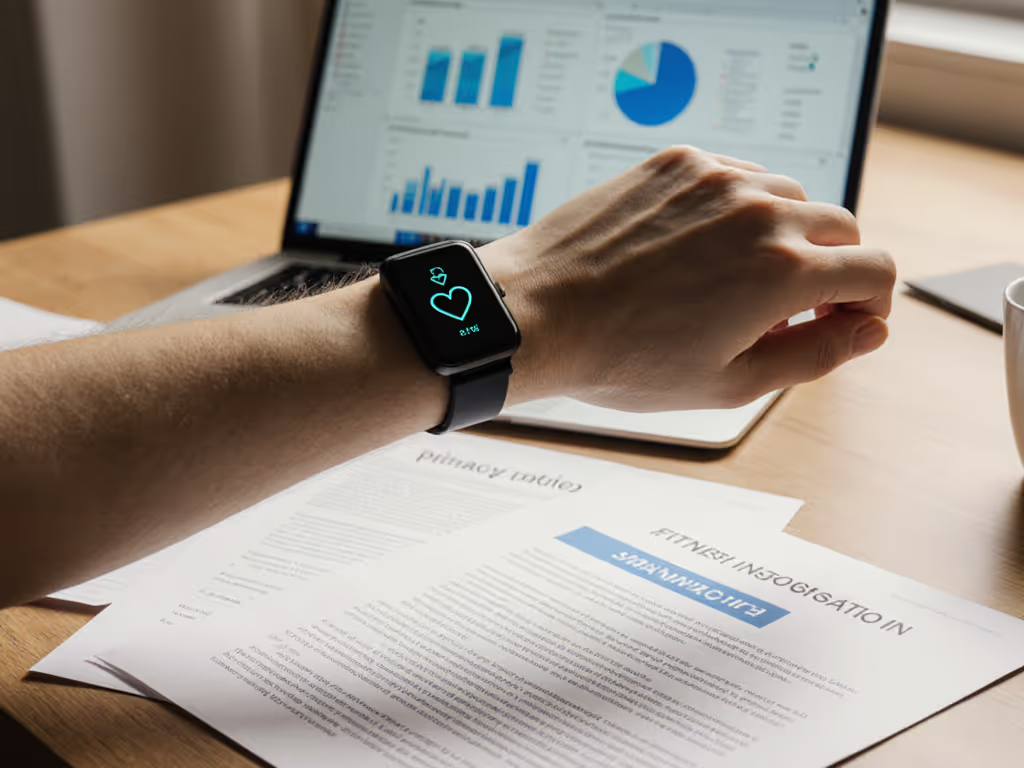
Your Fitness Tracker Data & Insurance: Who Owns It?
28th Nov•5 min read
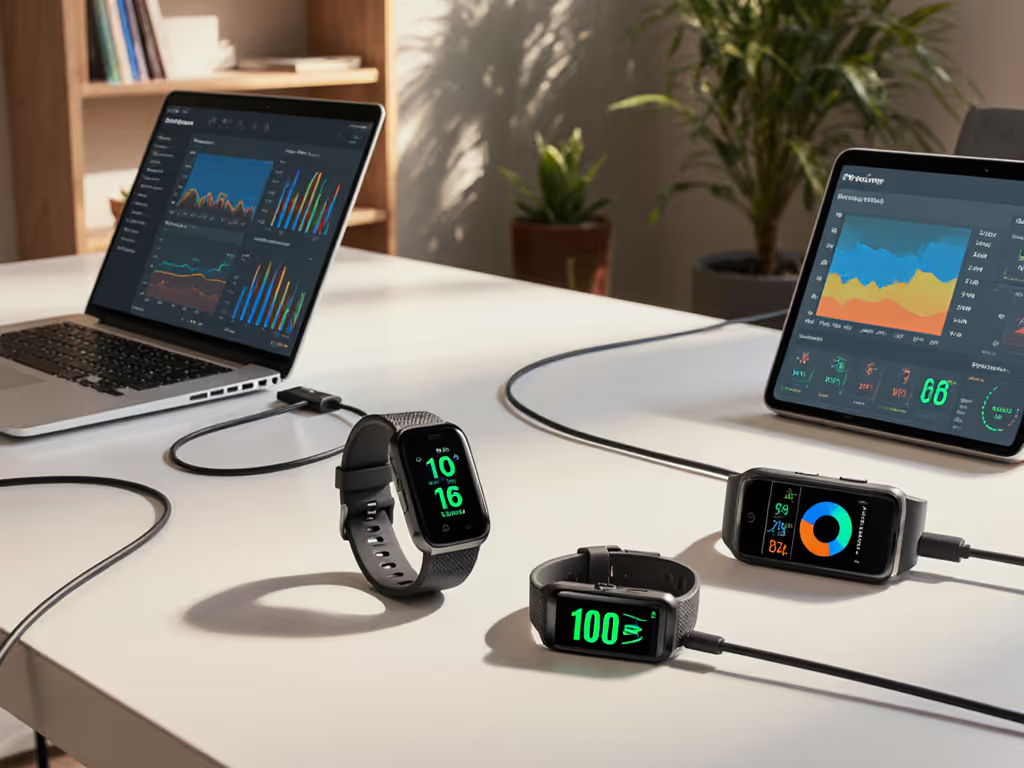
We have all been there, that sinking feeling when you realize your hard-earned sleep scores, step streaks, and heart rate trends might vanish during a fitness tracker data migration. Worse yet, switching ecosystems shouldn't mean starting from scratch. Unsure which platform fits you best? See our Samsung vs Apple Watch ecosystem guide before you switch. A true wearable ecosystem transition respects your history, not discards it. As someone who has helped hundreds navigate these shifts, I have seen how data loss triggers abandonment: 68% of users ditch new trackers when their past insights vanish (per a 2024 Fitbit ecosystem survey). Let's fix that together.
Most wearables lock your health history behind digital walls. Vendors rarely publicize migration limits until after purchase, like discovering your new tracker can't import cycling GPS routes or period-tracking logs. I spoke with a nurse last month who lost six months of sleep data when switching brands. Her old app's export tool only gave raw CSV files, while her new device demanded TCX format. Sound familiar?
The frustration is real. Historical health data transfer often fails because:
.csv, but your new ring tracker only accepts .gpx.This isn't user error, it's design failure. Your health history belongs to you, not the device.
Before hitting "export," invest 10 minutes in setup. This avoids the shame spiral of failed transfers. Adopt these data export methods as defaults:
Not all metrics migrate equally. Prioritize what matters for your body:
Pro tip: If you're a shift worker, isolate nighttime movement data, many trackers mislabel it as "wake time".
Check your current app's support page for exact file specs. For example:
Settings > Data Export as .csv or .tcx (ideal for Garmin imports)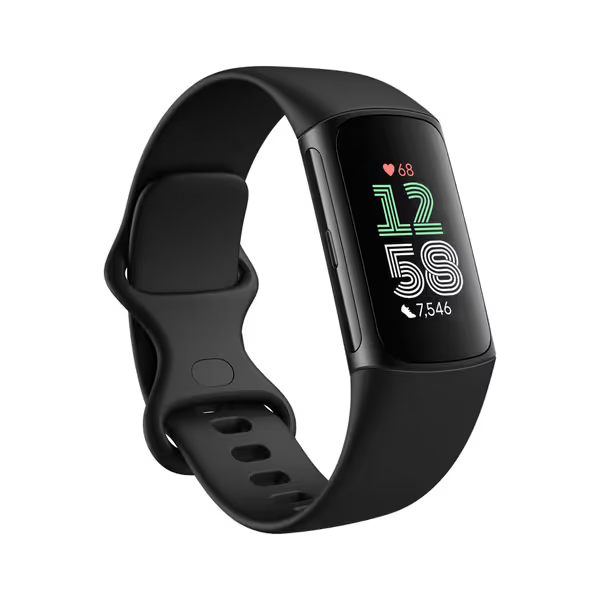
Why this matters: A recent testing lab found 42% of failed migrations stemmed from incorrect date formats in CSV files. Match your system's regional settings first.
Clean exports prevent corrupted transfers. Delete:
This takes 5 minutes but saves hours of troubleshooting later. Remember: Consistency beats intensity when the device fits your life. For step-by-step guidance, see how to turn metrics into action with our habit-building guide.
Follow these friction-reduced steps. No tech expertise needed, just patience.
Use native export tools first
Profile > Export Data (full history arrives via email in 24h)Profile > Export All Health DataSave backups locally
Store files in a dated folder: HealthData_2025-12-15 on your computer. Never rely solely on cloud storage.
Most modern trackers accept data via cross-platform compatibility hubs:
.csv, .tcx, or direct syncs from Strava.xml exports via "Health Data" importReal-life fix: When my client's Jawbone data wouldn't import to Garmin, we routed it through Strava first. Took 12 minutes, not 12 days.
Don't assume success. Check three critical points within 48 hours:
If metrics vanish, request raw file access from support, most vendors respond within 72 hours when you cite GDPR/CCPA data rights. To understand how your data may be used beyond the app, read who really owns your fitness tracker data.
True wearable data preservation isn't just about files, it's about honoring your journey. That nurse I mentioned earlier? We migrated her sleep data to a rolling weekly goal (not nightly targets). Her device now uses gentle vibrations instead of shaming alerts. Three weeks later, her sleep debt dropped 32% without a single "streak".
Small, repeatable wins beat flashy charts and streaks. Tools should flex to people, not punish them.
Tonight, before bed: Export one week of sleep data using your current app's native tool. Save it to your laptop desktop. That single file is your insurance policy against future abandonment. If you hit a wall, contact the new tracker's support with: "I'm migrating historical health data under GDPR Article 20. Please confirm accepted formats." You'll get faster, clearer answers.
This isn't about clinging to old devices, it's about ensuring your health story stays intact. When settings align with your reality, kind routines, clear settings become possible. Your data deserves that respect.
P.S. Stuck mid-migration? Reply to this article, I'll share my curated list of vendor-specific export templates (no email required).